
1. Filter Your View (Optional)
Before exporting, you may wish to narrow down the list of resources to specific items. If you do not apply filters, the export will include all resources currently in the library.
-
Navigate to the Resource Library.
-
Locate the Filter buttons at the top right of the screen, next to the + Resource button.
-
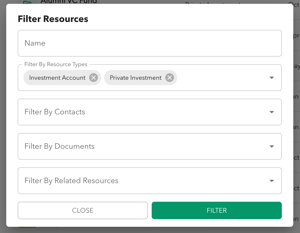
You can filter the resource table by:
-
Name
-
Resource Types
-
Associated Contacts
-
Documents
-
Related Resources
-
-
Select your desired criteria in the pop-up modal and click Filter to apply them.
2. Export to Excel
Once you are viewing the specific resources you wish to download (or the full list), follow these steps:
-
Click the Export button located at the top right of the screen (adjacent to the Filter buttons).
-
The system will automatically generate and download an .xlsx file to your computer.
Understanding the Export File
The downloaded spreadsheet provides a comprehensive view of your data:
-
Structure: The file is structured by Resource Type.
-
Content: It includes all structured resource details for every resource in the export.
-
Associations: The file also lists associated documents, accounts, and contacts linked to each resource.
Note: Currently, you cannot select specific columns or fields to include in the export. The file will always contain all available details for the selected resources.